
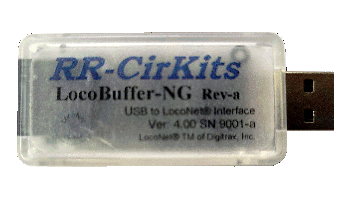
The LocoBuffer-NG or LocoBuffer-USB provide a very reliable way to connect a computer to a LocoNet®. They are produced by Dick Bronson's RR-CirKits company, based in part on the original LocoBuffer design.
Install the RR-CirKits "drivers", if needed.
The recommended JMRI setup for the LocoBuffer-NG or LocoBuffer-USB:
Connect the LocoBuffer-NG or LocoBuffer-USB to the computer. If a LocoBuffer-USB, make sure that you have installed the appropriate drivers.
Start DecoderPro, PanelPro, or one other JMRI other program to configure that program's hardware interface. If you will be using other JMRI programs, each program must be separately configured.
If necessary, open Edit⇒Preferences→Connection" to get a window for the "connection" configuration. If the program has not been configured before, or if a new "configuration profile" is being used, the JMRI program may automatically open this window.
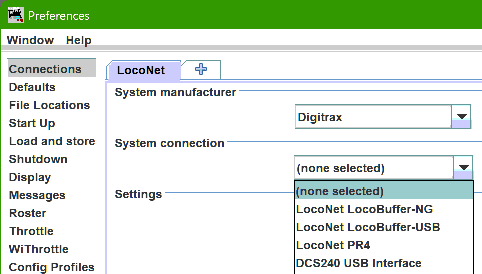
Select "Digitrax" as the system manufacturer.
Select the correct interface device - LocoBuffer-NG or LocoBuffer-USB, as appropriate - from the list of "System connections", as shown below:
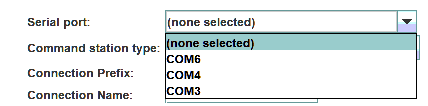
Select the port which the LocoBuffer-NG or LocoBuffer is using. With Windows machines, this is a "COM" port as shown below.
Select the appropriate "Command station type" from the types shown in the list.
If necessary, configure the "Additional Configuration Settings.
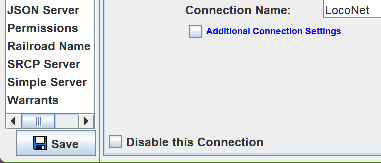
Activate the "Save" button in the lower left corner of the window, as shown below. This will save the settings and causes the JMRI program to "restart", using the settings you have chosen.
The LocoBuffer-NG and LocoBuffer-USB devices do not require a separate power supply under normal cases. They receive power from the attached computer, for powering their "USB" functionality and much of the LocoNet functionality. They also require a small amount of power from the LocoNet's "RailSync" wires, to power the mechanisms which actually transmit message data to the LocoNet data lines and to receive data from the LocoNet data lines. When a command station is being used on LocoNet, the command station typically provides "RailSync" power.
There are some cases where the LocoBuffer-NG or LocoBuffer-USB is used with a LocoNet which does not include a command station. In those cases, it may be necessary to provide some other mechanism to provide the power needed by the LocoBuffer-NG or LocoBuffer-USB. The "Standalone LocoNet help page provides some suggestions.
Note that the LocoBuffer-NG and LocoBuffer-USB devices provide electrical "isolation" between your computer and LocoNet. This pretty much eliminates the likelihood of ground currents flowing through the LocoNet cable, through the computer, to some other common connection.
According to the RR-Circuits web page, Windows 11 does not support the LocoBuffer-USB. This relates to some security "features" implemented by Microsoft, but which are not supported by the LocoBuffer-USB hardware and/or driver software. RR-CirKits recommends use of their LocoBuffer-NG under Windows 11, because the LocoBuffer-NG and its software drivers are compatible with that particular Windows 11 security feature.
Several users have reported that their LocoBuffer-USB has worked under Windows 11, but only after "disabling" that Windows 11 security feature.
NOTE: Disabling of any Windows "security" feature may place you and users of your computer at elevated risk of malware, viruses, etc. You assume all risk when disabling security features!
Several of those successful users of LocoBuffer-USB devices under Windows 11 have found that their LocoBuffer-USB has mysteriously stopped working under Windows 11. It may be that some Windows 11 "update" can re-enable that security feature, without notifying the user, causing the LocoBuffer-USB to become unusable.
Users of Windows 11 with no longer functioning LocoBuffer-USB devices can try to re-disable that security feature, subject to the security note above. Hopefully, one can find more information about this kind of problem by searching the web for information about the specific Windows security problem.
LocoNet® is a registered trademark of Digitrax, Inc.