
A Layout Editor Traverser is a schematic representation of a traverser / transfer table on the layout. The traverser is drawn as a rectangle with a variable number of track connection pairs called slots. A slot has connections for two track segments. Most of the track segments will connect a slot connection to an end bumper. Any number of traversers can be added to a panel and each traverser may have any number of slots.
A traverser is added to a panel by selecting Add Traverser in the panel's Options ⇒ Add menu. New traversers are placed at the center of the panel, and are moved to the desired location by dragging its control point with the meta key pressed (right button drag on Windows). A traverser can also be added to a panel by selecting Traverser in the tool bar and shift-clicking on the desired location on the panel. When a traverser is added, it has two slot pairs.
The traverser's popup menu has two items. Selecting Edit… brings up an Edit Traverser dialog, and selecting Delete deletes the traverser. Before a traverser is actually deleted, the program asks for verification of that action.
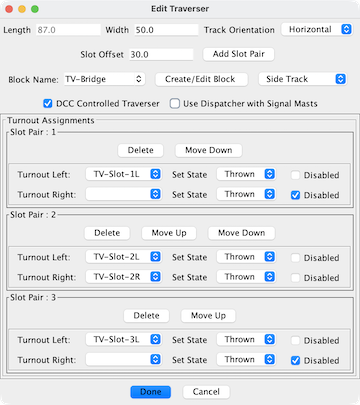 The Edit
Traverser dialog allows the following:
The Edit
Traverser dialog allows the following:
The traverser image on the panel is based on the platform width, the offset between slots and the orientation. The width and slot offset are pixel values. The orientations are horizontal and vertical. The length is based on the slot offset and the number of slots.
When Add Slot Pair is clicked, a new slot is added to the end of the slot list. The Move Up and Move Down buttons in the slot list are used to change the slot sequence.
To complete the configuration, assign a block for the traverser bridge. The width of the the track line is set by selecting Side Track or Main Track.
When this is selected it allows for control of traversers (and drivers) that use DCC turnout addresses to set the traverser to various positions. For each slot connection, select the DCC turnout address and the position required to set it. The Disabled option is used for inactive slot connections. For example, the right side may have one connection while the left side has multiple connections.
To set the traverser to the desired position, click on the slot connection that you wish the traverser to be aligned with.
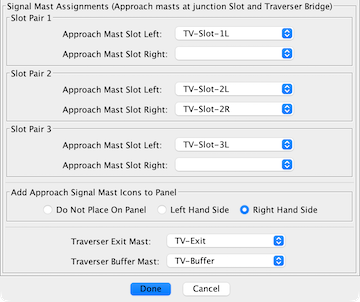
When the Use Dispatcher with Signal Masts option is enabled, the edit dialog is expanded.
While designed for use by Dispatcher, the signal masts can be used by any logic tool.
Each slot connection has an approach signal mast. The destination mast for the signal mast logic (SML) is a Buffer mast. When the traverser is aligned to the slot connections and the bridge is not occupied, the approach mast will display an aspect indicating it is safe to move onto the traverser bridge. The SML is not automatically created. Use Auto Generate Signaling Pairs to create the SML.
The move from the bridge to a slot track segment is controlled by the Exit mast. The Exit mast has SML for each slot track segment that contains a signal mast at the end bumper or at an anchor point. When the traverser is aligned to the slot track segment and the track segment is not occupied, the Exit mast will display an aspect indicating that it is safe to move from the bridge to the slot track segment. The signal masts for the end bumpers or anchor points have to be manually attached using Set Signal Masts. After attaching the masts, use Auto Generate Signaling Pairs to create the SML.
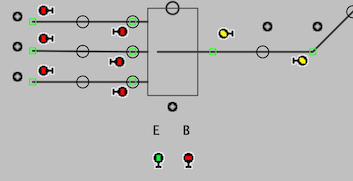
The Buffer and Exit signal masts are not automatically added to the panel. For reference it is handy to manually add these to the panel.
This is an example of a traverser with three slot connections on the left side and a single slot connection on the right side.
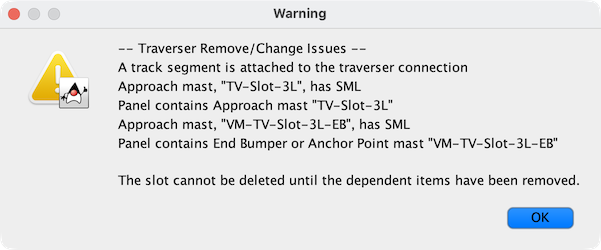
The changes that implement Use Dispatcher with Signal Masts need to be removed when the option is disabled, a slot is deleted, the traverser is deleted or a slot connection is changed to Disabled. Removing the changes prevents JMRI errors and Java exceptions.
If a change is not allowed, a dialog will display a list of the items to be removed. This image shows the items to be removed before setting a traverser slot connection to Disabled.
Use the Signal Mast Logic table to remove the SML items.